Introduction
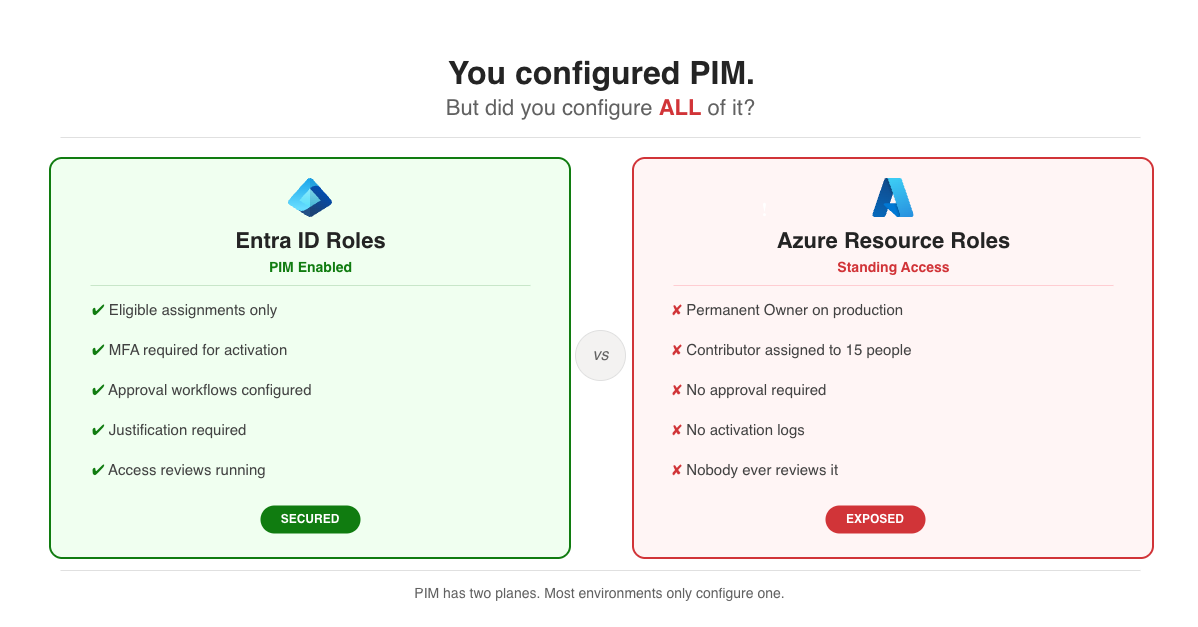
I’ve seen too many Azure environments where PIM is technically “enabled” but nobody actually uses it properly. Admins have standing Global Administrator access. The Contributor role is permanently assigned to half the engineering team. PIM becomes checkbox compliance rather than actual security.
Here’s the thing: PIM works. When configured properly, it eliminates standing privileged access entirely. Users request elevation, provide justification, get approved (or not), and the access expires automatically. Full audit trail. No forgotten admin accounts sitting around for attackers to find.
One thing upfront: PIM requires Entra ID P2 licensing (or Entra ID Governance for features like access reviews). If you’re not sure whether your tenant has it, check under Entra ID > Licenses. Without P2, none of this works.
This post covers what I’ve learned setting up PIM in production environments, including the parts that aren’t obvious from the documentation.
- PIM has two separate planes: Entra ID roles and Azure RBAC roles (you need to configure both)
- Eligible = must activate before use. Active = always-on (avoid this)
- Approval workflows add human oversight but can become bottlenecks
- Access reviews catch permissions that should have been removed months ago
- PIM for Groups lets you make group membership eligible, which unlocks JIT access for anything tied to a group
- Terraform support exists but has gaps
The two planes of PIM
This trips people up constantly. PIM operates on two completely separate planes:
┌─────────────────────────────────────────────────────────────────┐│ Azure PIM │├─────────────────────────────┬───────────────────────────────────┤│ Entra ID Roles │ Azure Resource Roles ││ (Directory Level) │ (Subscription/Resource Level) │├─────────────────────────────┼───────────────────────────────────┤│ • Global Administrator │ • Owner ││ • User Administrator │ • Contributor ││ • Security Administrator │ • Reader ││ • Privileged Role Admin │ • Custom roles ││ • Application Admin │ • Resource-specific roles │├─────────────────────────────┼───────────────────────────────────┤│ Configured in: │ Configured in: ││ Entra ID > PIM > │ Entra ID > PIM > ││ Entra ID roles │ Azure resources │└─────────────────────────────┴───────────────────────────────────┘I’ve audited environments with excellent PIM coverage for Entra ID roles while Azure resource roles had standing Owner access everywhere. Check both.
Eligible vs. active assignments
┌─────────────────────────────────────────────────────────────────┐│ Assignment Types │├──────────────┬──────────────────────┬───────────────────────────┤│ Type │ Behavior │ When to use │├──────────────┼──────────────────────┼───────────────────────────┤│ Eligible │ Must activate first │ Default for all users ││ Active │ Always available │ Break-glass accounts only ││ Time-bound │ Expires on date │ Contractors, projects ││ Permanent │ Never expires │ Avoid if possible │└──────────────┴──────────────────────┴───────────────────────────┘The goal is simple: make everything eligible, make nothing active. Active assignments defeat the purpose of PIM.
Configuring role settings
Each role has its own activation settings. Here’s what the configuration looks like:
{ "activationMaximumDuration": "PT8H", "isApprovalRequired": true, "approvers": [ { "id": "security-team-group-id", "description": "Security Team" } ], "isJustificationRequired": true, "isMfaRequired": true, "isTicketRequired": false, "eligibleAssignmentDefaultDuration": "P365D", "activeAssignmentDefaultDuration": "P180D"}Settings by role tier
Not every role needs the same level of scrutiny. Here’s how I typically tier them:
┌────────────────────────────────────────────────────────────────────────────┐│ PIM Settings by Role Tier │├─────────────┬──────────────────────────────────────────────────────────────┤│ TIER 0 │ Global Admin, Privileged Role Admin ││ Critical │ │├─────────────┼────────────────┬─────────────────┬───────────────────────────┤│ │ Max activation │ Approval │ Requirements ││ │ 2 hours │ Dual approval │ MFA + Justification + ││ │ │ │ Ticket number │├─────────────┼──────────────────────────────────────────────────────────────┤│ TIER 1 │ User Admin, Security Admin, Subscription Owner ││ High │ │├─────────────┼────────────────┬─────────────────┬───────────────────────────┤│ │ Max activation │ Approval │ Requirements ││ │ 4 hours │ Single approval │ MFA + Justification │├─────────────┼──────────────────────────────────────────────────────────────┤│ TIER 2 │ Contributor, Application Admin ││ Medium │ │├─────────────┼────────────────┬─────────────────┬───────────────────────────┤│ │ Max activation │ Approval │ Requirements ││ │ 8 hours │ None │ MFA + Justification │└─────────────┴────────────────┴─────────────────┴───────────────────────────┘The 2-hour limit for Tier 0 feels aggressive, but that’s intentional. If you need Global Admin for longer than 2 hours, you’re probably doing something that should be broken into smaller tasks or delegated to a less privileged role. For reference, the absolute maximum you can configure is 24 hours (PT24H), but I wouldn’t recommend going above 8 hours for any role.
Conditional Access authentication context
The isMfaRequired flag in PIM settings is a basic check. For Tier 0 roles, you can do better by combining PIM with Conditional Access authentication contexts. This lets you require phishing-resistant MFA (FIDO2 keys, Windows Hello), a compliant device, or a specific network location specifically when someone activates a high-privilege role.
Set this up by creating an authentication context in Conditional Access, then linking it to the PIM role setting. The result is that activating Global Admin can require a hardware security key even if the user’s normal sign-in only needs the Authenticator app.
Configuring via PowerShell
The Graph API for PIM settings is verbose. Here’s a complete example for Global Administrator:
# Get the role definition and find its associated policy$roleName = "Global Administrator"$roleDefinition = Get-MgRoleManagementDirectoryRoleDefinition -Filter "displayName eq '$roleName'"
# Get the policy assignment for this role, then retrieve the policy$policyAssignment = Get-MgPolicyRoleManagementPolicyAssignment `    -Filter "scopeId eq '/' and scopeType eq 'DirectoryRole' and roleDefinitionId eq '$($roleDefinition.Id)'"
$policy = Get-MgPolicyRoleManagementPolicy -UnifiedRoleManagementPolicyId $policyAssignment.PolicyId
# Update the expiration rule (max activation duration)$expirationRule = @{    "@odata.type" = "#microsoft.graph.unifiedRoleManagementPolicyExpirationRule"    id = "Expiration_EndUser_Assignment"    isExpirationRequired = $true    maximumDuration = "PT2H"  # 2 hours max activation    target = @{        caller = "EndUser"        operations = @("All")        level = "Assignment"    }}
Update-MgPolicyRoleManagementPolicyRule `    -UnifiedRoleManagementPolicyId $policy.Id `    -UnifiedRoleManagementPolicyRuleId "Expiration_EndUser_Assignment" `    -BodyParameter $expirationRule
# Update the enablement rule (MFA, justification requirements)$enablementRule = @{    "@odata.type" = "#microsoft.graph.unifiedRoleManagementPolicyEnablementRule"    id = "Enablement_EndUser_Assignment"    enabledRules = @("MultiFactorAuthentication", "Justification", "Ticketing")    target = @{        caller = "EndUser"        operations = @("All")        level = "Assignment"    }}
Update-MgPolicyRoleManagementPolicyRule `    -UnifiedRoleManagementPolicyId $policy.Id `    -UnifiedRoleManagementPolicyRuleId "Enablement_EndUser_Assignment" `    -BodyParameter $enablementRule
Approval workflows
Approval adds human oversight but also adds friction. Get this balance wrong and people will work around PIM instead of through it.
┌─────────────────────────────────────────────────────────────────┐│              Single-Stage Approval                              ││                                                                 ││    User requests    ──►   Approvers     ──►   Access granted    ││    activation            notified             (if approved)     ││                                                                 ││    • Any approver can approve/deny                              ││    • Timeout after 24 hours (configurable)                      │└─────────────────────────────────────────────────────────────────┘
┌─────────────────────────────────────────────────────────────────┐│              Multi-Stage Approval (Tier 0 roles)                ││                                                                 ││    User         ──►   Stage 1:      ──►   Stage 2:    ──►       ││    requests           Manager             Security        Access││    activation         approves            approves              ││                                                                 ││    • Both stages must approve                                   ││    • Use for Global Admin, Privileged Role Admin                │└─────────────────────────────────────────────────────────────────┘
The approval bottleneck problem
I’ve seen this go wrong. Critical production issue at 2 AM, engineer needs Contributor access, approvers are asleep. Options:
- Multiple approvers: Add enough people that someone’s always awake
- Escalation groups: Backup approvers get notified after 30 minutes
- On-call rotation: Approver duty follows the on-call schedule
- Accept the risk: Some Tier 2 roles might not need approval at all
Break-glass accounts
PIM shouldn’t block legitimate emergencies. Every environment needs at least two break-glass accounts:
┌─────────────────────────────────────────────────────────────────┐│ Break-Glass Account Setup │├─────────────────────────────────────────────────────────────────┤│ • Dedicated cloud-only accounts (not synced from AD) ││ • Active Global Admin assignment (not eligible) ││ • MFA with physical security keys stored in a safe ││ • Excluded from Conditional Access policies ││ • Monitored: alert on ANY sign-in attempt ││ • Tested quarterly (actually sign in, verify it works) │└─────────────────────────────────────────────────────────────────┘Document where the keys are. Document who can access them. Test the accounts regularly. I’ve seen break-glass accounts that hadn’t worked in years because nobody ever tested them.
Access reviews
Permissions accumulate. Someone gets eligible for Contributor during a project, the project ends, but the eligibility stays. Six months later they have access to subscriptions they haven’t touched in ages.
Access reviews fix this by periodically asking “does this person still need this access?” The answer is often no.
┌─────────────────────────────────────────────────────────────────┐│ Access Review Flow │├─────────────────────────────────────────────────────────────────┤│ ││ Schedule Review Period Auto-Apply ││ (Quarterly) ──► (14 days) ──► (Remove if denied ││ or no response) ││ │ │ │ ││ ▼ ▼ ▼ ││ Reviewers Reviewers see: Stale access ││ notified • Who has access removed ││ • Last activation automatically ││ • Recommendation ││ │└─────────────────────────────────────────────────────────────────┘Creating an access review
$params = @{    displayName = "Quarterly PIM Review - Global Administrators"    descriptionForAdmins = "Review eligible Global Administrator assignments"    descriptionForReviewers = "Please verify each user still requires Global Administrator access"    scope = @{        "@odata.type" = "#microsoft.graph.principalResourceMembershipsScope"        principalScopes = @(            @{                "@odata.type" = "#microsoft.graph.accessReviewQueryScope"                query = "/roleManagement/directory/roleEligibilityScheduleInstances"                queryType = "MicrosoftGraph"            }        )    }    reviewers = @(        @{            query = "/groups/security-team-group-id/members"            queryType = "MicrosoftGraph"        }    )    settings = @{        mailNotificationsEnabled = $true        reminderNotificationsEnabled = $true        justificationRequiredOnApproval = $true        defaultDecisionEnabled = $true        defaultDecision = "Deny"        instanceDurationInDays = 14        autoApplyDecisionsEnabled = $true        recommendationsEnabled = $true        recurrence = @{            pattern = @{                type = "absoluteMonthly"                interval = 3            }            range = @{                type = "noEnd"                startDate = "2026-01-01"            }        }    }}
New-MgIdentityGovernanceAccessReviewDefinition -BodyParameter $params
Review recommendations
Entra ID provides recommendations based on usage data. These are genuinely useful:
┌─────────────────────────────────────────────────────────────────┐│ Review Recommendations │├───────────────────────────────┬─────────────────────────────────┤│ Signal │ Recommendation │├───────────────────────────────┼─────────────────────────────────┤│ Never activated the role │ Remove (they don't need it) ││ Last activation > 90 days │ Remove (probably stale) ││ User left team/departed │ Auto-remove immediately ││ Activates frequently │ Keep (active user) ││ Activates but rarely │ Review case-by-case │└───────────────────────────────┴─────────────────────────────────┘Set defaultDecision = "Deny" so that if reviewers don’t respond, access gets removed. This prevents reviews from becoming rubber-stamp exercises.
PIM for Azure resource roles
This is the part people forget. Entra ID roles are covered, but Azure resource roles (Owner, Contributor, Reader at subscription/resource group scope) need separate configuration.
Assigning eligible Azure roles
PIM for Azure resources is automatically available with an Entra ID P2 license - no feature registration needed. Just navigate to Entra ID > PIM > Azure resources and start assigning eligible roles.
# Make a user eligible for Contributor roleNew-AzRoleEligibilityScheduleRequest ` -Name (New-Guid).Guid ` -Scope "/subscriptions/$subscriptionId" ` -PrincipalId $userId ` -RoleDefinitionId "/subscriptions/$subscriptionId/providers/Microsoft.Authorization/roleDefinitions/b24988ac-6180-42a0-ab88-20f7382dd24c" ` -RequestType "AdminAssign" ` -ScheduleInfoStartDateTime (Get-Date) ` -ExpirationType "AfterDuration" ` -ExpirationDuration "P365D"Activating Azure roles
# Activate an eligible Azure roleNew-AzRoleAssignmentScheduleRequest ` -Name (New-Guid).Guid ` -Scope "/subscriptions/$subscriptionId" ` -PrincipalId $userId ` -RoleDefinitionId "/subscriptions/$subscriptionId/providers/Microsoft.Authorization/roleDefinitions/b24988ac-6180-42a0-ab88-20f7382dd24c" ` -RequestType "SelfActivate" ` -Justification "Incident INC0012345 - Production deployment" ` -ScheduleInfoStartDateTime (Get-Date) ` -ExpirationType "AfterDuration" ` -ExpirationDuration "PT4H"Terraform integration
Good news: Terraform can manage PIM eligible assignments. Bad news: the support is incomplete and occasionally frustrating.
Managing eligible assignments
# azurerm provider support for PIMresource "azurerm_pim_eligible_role_assignment" "contributor" {  scope              = data.azurerm_subscription.current.id  role_definition_id = "${data.azurerm_subscription.current.id}/providers/Microsoft.Authorization/roleDefinitions/b24988ac-6180-42a0-ab88-20f7382dd24c"  principal_id       = azuread_user.admin.object_id
  schedule {    start_date_time = "2026-01-01T00:00:00Z"    expiration {      duration_days = 365    }  }
  justification = "Managed by Terraform"
  ticket {    number = "CHANGE-001"    system = "ServiceNow"  }}
Managing PIM settings via AzAPI
The azurerm provider doesn’t cover role settings (activation duration, approval requirements, etc). You need azapi for that:
# PIM role settings via AzAPI provider# Note: Policy ID follows pattern: {scope}/providers/Microsoft.Authorization/roleManagementPolicies/{roleDefinitionId}resource "azapi_update_resource" "pim_role_settings" {  type        = "Microsoft.Authorization/roleManagementPolicies@2020-10-01"  resource_id = "${var.scope}/providers/Microsoft.Authorization/roleManagementPolicies/${var.role_definition_id}"
  body = jsonencode({    properties = {      rules = [        {          id       = "Expiration_EndUser_Assignment"          ruleType = "RoleManagementPolicyExpirationRule"          target = {            caller     = "EndUser"            operations = ["All"]            level      = "Assignment"          }          isExpirationRequired = true          maximumDuration      = "PT8H"        },        {          id       = "Enablement_EndUser_Assignment"          ruleType = "RoleManagementPolicyEnablementRule"          target = {            caller     = "EndUser"            operations = ["All"]            level      = "Assignment"          }          enabledRules = ["MultiFactorAuthentication", "Justification"]        }      ]    }  })}
What Terraform can’t do (yet)
┌─────────────────────────────────────────────────────────────────┐│ Terraform PIM Support Matrix │├───────────────────────────────┬─────────────────────────────────┤│ Feature │ Support │├───────────────────────────────┼─────────────────────────────────┤│ Eligible role assignments │ ✓ azurerm provider ││ Active role assignments │ ✓ azurerm provider ││ Basic role settings │ ~ azapi (partial) ││ Approval workflows │ ✗ Manual or Graph API ││ Multi-stage approval │ ✗ Manual only ││ Access reviews │ ✗ Manual or Graph API ││ PIM for Groups │ ✗ Manual only │└───────────────────────────────┴─────────────────────────────────┘For complex approval workflows, I configure those manually after Terraform creates the eligible assignments. Not ideal, but workable.
PIM for Groups
This is the feature that doesn’t get enough attention. Instead of making individual users eligible for individual roles, you make group membership itself eligible through PIM. A user activates their membership in the group, and that group grants whatever access it’s been assigned.
Why this matters: you can tie a single group to an Azure RBAC role, an Entra ID role, access to a Key Vault, membership in an Azure DevOps project, or anything else that supports group-based access. One activation, multiple permissions, all time-limited.
┌─────────────────────────────────────────────────────────────────┐│ PIM for Groups Flow │├─────────────────────────────────────────────────────────────────┤│ ││ User activates ──► Group membership ──► Access ││ group membership becomes active granted via ││ via PIM (time-limited) group roles ││ ││ The group can grant: ││ • Azure RBAC roles (Owner, Contributor, etc.) ││ • Entra ID roles (User Admin, etc.) ││ • Application access (Enterprise Apps) ││ • Key Vault access policies ││ • Azure DevOps / other SaaS via group membership ││ │└─────────────────────────────────────────────────────────────────┘Setting it up
The group must be a cloud-only security group or Microsoft 365 group with the “isAssignableToRole” property set to true (for Entra ID roles). You enable PIM for the group under Entra ID > PIM > Groups.
A practical pattern I use: create a “Production-Contributor” group, assign it Contributor on the production subscription, then make team members eligible for group membership. They activate when they need production access, and it all expires together.
One limitation: PIM for Groups can’t be managed through Terraform yet. It’s portal or Graph API only.
Monitoring and alerting
PIM generates detailed audit data. Use it.
Built-in PIM alerts
Before you build custom queries, check the alerts that come out of the box. Under Entra ID > PIM > Alerts, PIM flags common misconfigurations:
- Roles don’t require MFA for activation
- Roles are being activated too frequently
- Potential stale eligible role assignments (users who never activate)
- Roles are being assigned outside of PIM
- Permanent eligible assignments found
Review these regularly. They catch the low-hanging fruit without any setup.
┌─────────────────────────────────────────────────────────────────┐│ Alert Priority Matrix │├────────────────────────────────┬────────────────────────────────┤│ Event │ Priority / Action │├────────────────────────────────┼────────────────────────────────┤│ Role activated │ Log only (normal operation) ││ Approval granted │ Log only (normal operation) ││ Approval denied │ Medium - investigate why ││ PIM settings changed │ High - who changed what? ││ Permanent assignment created │ High - policy violation? ││ Global Admin activated │ High - always investigate ││ Break-glass account used │ Critical - incident response │└────────────────────────────────┴────────────────────────────────┘Setting up alerts
// KQL query for PIM activationsAuditLogs| where Category == "RoleManagement"| where OperationName has "PIM activation"| extend RoleName = tostring(TargetResources[0].displayName)| where RoleName == "Global Administrator"| project TimeGenerated, User = InitiatedBy.user.userPrincipalName, RoleName, Result, Justification = tostring(AdditionalDetails[0].value)| order by TimeGenerated descDiagnostic settings
Configure Entra ID diagnostic settings to send audit logs to Log Analytics. In the Azure portal: Entra ID > Monitoring > Diagnostic settings > Add diagnostic setting.
Select these log categories:
- AuditLogs - includes all PIM operations
- SignInLogs - for break-glass account monitoring
Or via the Graph API, since the standard az monitor diagnostic-settings command doesn’t work for Entra ID (it uses a separate resource provider):
# Create diagnostic setting for Entra ID logs via Graph APIaz rest --method PUT \ --url "https://management.azure.com/providers/microsoft.aadiam/diagnosticSettings/PIM-Audit-Logs?api-version=2017-04-01" \ --body '{ "properties": { "workspaceId": "'$LOG_ANALYTICS_WORKSPACE_ID'", "logs": [ {"category": "AuditLogs", "enabled": true, "retentionPolicy": {"enabled": false, "days": 0}}, {"category": "SignInLogs", "enabled": true, "retentionPolicy": {"enabled": false, "days": 0}} ] } }'Alternatively, configure this in the portal under Entra ID > Monitoring > Diagnostic settings, which is honestly easier for a one-time setup.
Common mistakes I’ve seen
Forgetting Azure resource roles. Entra ID roles are locked down, but anyone can still get Contributor access to production subscriptions. Check both planes.
Approval bottlenecks. The security team must approve all activations. The security team is two people in the same timezone. Someone needs access at 3 AM and nobody’s answering. Fix: more approvers, escalation paths, or accept that Tier 2 roles don’t need approval.
Over-restricting break-glass. The break-glass account requires PIM activation with dual approval. That defeats the purpose. Break-glass accounts need active assignments with compensating controls (monitoring, physical key storage).
Permanent eligibility. Someone got eligible for Contributor two years ago for a project that ended. They’re still eligible. Nobody noticed. Fix: time-bound eligibility and regular access reviews.
No activation monitoring. PIM is enabled but nobody looks at the logs. Global Admin gets activated and nobody knows. Fix: alerts on high-privilege activations, sent to somewhere people actually look.
Wrapping up
PIM works when you actually use it. That means:
- Configure both planes (Entra ID roles and Azure resource roles)
- Tier your settings so critical roles get stricter controls
- Use Conditional Access authentication contexts for Tier 0 roles
- Look at PIM for Groups to simplify access management
- Don’t let approval workflows become bottlenecks
- Run access reviews quarterly and actually act on them
- Review the built-in PIM alerts and set up custom monitoring for high-privilege activations
- Test your break-glass accounts before you need them
The goal isn’t perfect security theater. It’s eliminating standing privileged access while keeping operations running smoothly. Get the balance right and PIM becomes invisible to your users while making life much harder for attackers.
Sources
-
Microsoft, “What is Privileged Identity Management?”, Entra ID Documentation, https://learn.microsoft.com/entra/id-governance/privileged-identity-management/pim-configure
-
Microsoft, “Assign Azure Resource Roles in PIM,” Entra ID Documentation, https://learn.microsoft.com/entra/id-governance/privileged-identity-management/pim-resource-roles-assign-roles
-
Microsoft, “Configure PIM Role Settings,” Entra ID Documentation, https://learn.microsoft.com/entra/id-governance/privileged-identity-management/pim-how-to-change-default-settings
-
Microsoft, “PIM for Groups,” Entra ID Documentation, https://learn.microsoft.com/entra/id-governance/privileged-identity-management/concept-pim-for-groups
-
Microsoft, “Conditional Access authentication context,” Entra ID Documentation, https://learn.microsoft.com/entra/identity/conditional-access/concept-conditional-access-cloud-apps#authentication-context
-
HashiCorp, “azurerm_pim_eligible_role_assignment,” Terraform Registry, https://registry.terraform.io/providers/hashicorp/azurerm/latest/docs/resources/pim_eligible_role_assignment