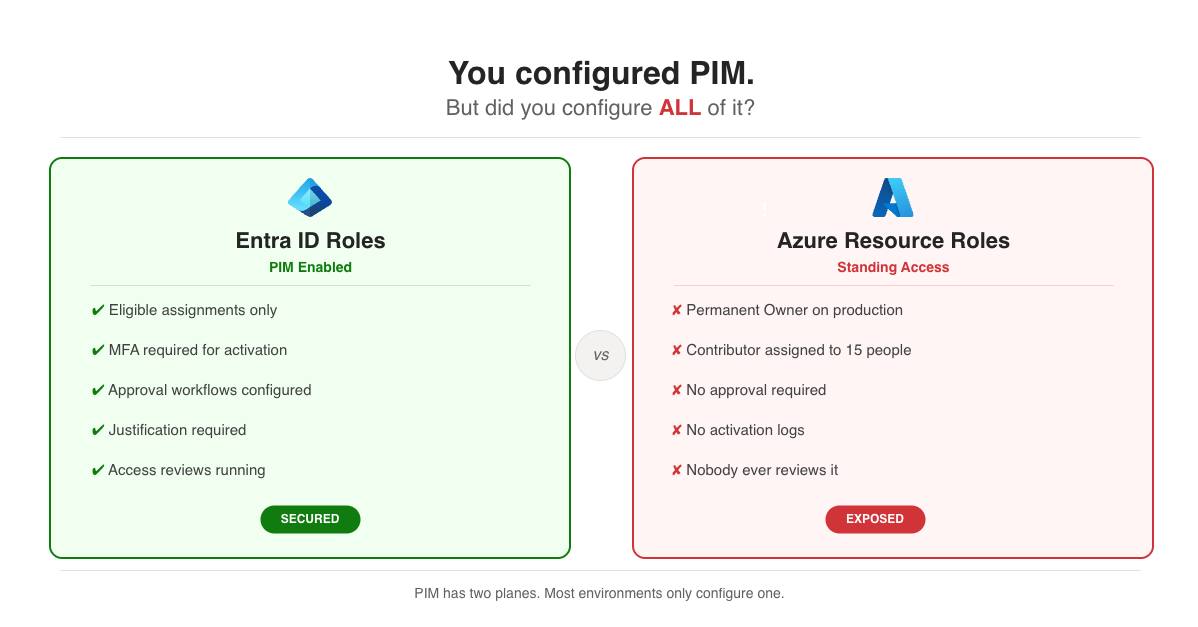
PIM is often enabled but not used
In many Azure environments I’ve seen, PIM is enabled but admins still have standing Global Administrator access and half the engineering team has Contributor permanently assigned.
Configured properly, PIM removes standing privileged access. Users request elevation with a justification, get approved if required, and the access expires automatically, with an audit trail for every step.
PIM requires an Entra ID P2 license (or Entra ID Governance for features like access reviews). You can check this under Entra ID > Licenses.
This post covers what I’ve learned setting up PIM in production environments.
Entra ID roles and Azure resource roles
PIM manages two separate sets of roles, configured in different places:
┌─────────────────────────────────────────────────────────────────┐│ Azure PIM │├─────────────────────────────┬───────────────────────────────────┤│ Entra ID Roles │ Azure Resource Roles ││ (Directory Level) │ (Subscription/Resource Level) │├─────────────────────────────┼───────────────────────────────────┤│ • Global Administrator │ • Owner ││ • User Administrator │ • Contributor ││ • Security Administrator │ • Reader ││ • Privileged Role Admin │ • Custom roles ││ • Application Admin │ • Resource-specific roles │├─────────────────────────────┼───────────────────────────────────┤│ Configured in: │ Configured in: ││ Entra ID > PIM > │ Entra ID > PIM > ││ Entra ID roles │ Azure resources │└─────────────────────────────┴───────────────────────────────────┘I’ve audited environments with good PIM coverage for Entra ID roles and standing Owner assignments on Azure resources everywhere. Check both.
Eligible vs. active assignments
┌─────────────────────────────────────────────────────────────────┐│ Assignment Types │├──────────────┬──────────────────────┬───────────────────────────┤│ Type │ Behavior │ When to use │├──────────────┼──────────────────────┼───────────────────────────┤│ Eligible │ Must activate first │ Default for all users ││ Active │ Always available │ Break-glass accounts only ││ Time-bound │ Expires on date │ Contractors, projects ││ Permanent │ Never expires │ Avoid if possible │└──────────────┴──────────────────────┴───────────────────────────┘Make assignments eligible. Active assignments are standing access, which PIM is meant to remove.
Configuring role settings
Each role has its own activation settings:
{ "activationMaximumDuration": "PT8H", "isApprovalRequired": true, "approvers": [ { "id": "security-team-group-id", "description": "Security Team" } ], "isJustificationRequired": true, "isMfaRequired": true, "isTicketRequired": false, "eligibleAssignmentDefaultDuration": "P365D", "activeAssignmentDefaultDuration": "P180D"}Settings by role tier
Not every role needs the same controls. This is how I usually tier them:
┌────────────────────────────────────────────────────────────────────────────┐│ PIM Settings by Role Tier │├─────────────┬──────────────────────────────────────────────────────────────┤│ TIER 0 │ Global Admin, Privileged Role Admin ││ Critical │ │├─────────────┼────────────────┬─────────────────┬───────────────────────────┤│ │ Max activation │ Approval │ Requirements ││ │ 2 hours │ Dual approval │ MFA + Justification + ││ │ │ │ Ticket number │├─────────────┼──────────────────────────────────────────────────────────────┤│ TIER 1 │ User Admin, Security Admin, Subscription Owner ││ High │ │├─────────────┼────────────────┬─────────────────┬───────────────────────────┤│ │ Max activation │ Approval │ Requirements ││ │ 4 hours │ Single approval │ MFA + Justification │├─────────────┼──────────────────────────────────────────────────────────────┤│ TIER 2 │ Contributor, Application Admin ││ Medium │ │├─────────────┼────────────────┬─────────────────┬───────────────────────────┤│ │ Max activation │ Approval │ Requirements ││ │ 8 hours │ None │ MFA + Justification │└─────────────┴────────────────┴─────────────────┴───────────────────────────┘Two hours for Tier 0 is deliberate. If a task needs Global Admin for longer, it can usually be split up or done with a less privileged role. The maximum you can configure is 24 hours (PT24H). I wouldn’t go above 8 hours for any role.
Conditional access authentication context
isMfaRequired is a basic check. For Tier 0 roles, combine PIM with a Conditional Access authentication context. That lets you require phishing-resistant MFA (FIDO2 keys, Windows Hello), a compliant device or a specific network location only when someone activates a high-privilege role.
Create the authentication context in Conditional Access and link it in the PIM role setting. Activating Global Admin can then require a hardware key even if normal sign-in only needs the Authenticator app.
Entra makes passkeys the default authentication experience from September 1st, 2026, and retires Microsoft-provided SMS and voice on February 1st, 2027 with no opt-out. PIM activation policies that still rely on a phone number as second factor need to move before then.
Configuring via PowerShell
The Graph API for PIM settings is verbose. A complete example for Global Administrator:
# Get the role definition and find its associated policy$roleName = "Global Administrator"$roleDefinition = Get-MgRoleManagementDirectoryRoleDefinition -Filter "displayName eq '$roleName'"
# Get the policy assignment for this role, then retrieve the policy$policyAssignment = Get-MgPolicyRoleManagementPolicyAssignment `    -Filter "scopeId eq '/' and scopeType eq 'DirectoryRole' and roleDefinitionId eq '$($roleDefinition.Id)'"
$policy = Get-MgPolicyRoleManagementPolicy -UnifiedRoleManagementPolicyId $policyAssignment.PolicyId
# Update the expiration rule (max activation duration)$expirationRule = @{    "@odata.type" = "#microsoft.graph.unifiedRoleManagementPolicyExpirationRule"    id = "Expiration_EndUser_Assignment"    isExpirationRequired = $true    maximumDuration = "PT2H"  # 2 hours max activation    target = @{        caller = "EndUser"        operations = @("All")        level = "Assignment"    }}
Update-MgPolicyRoleManagementPolicyRule `    -UnifiedRoleManagementPolicyId $policy.Id `    -UnifiedRoleManagementPolicyRuleId "Expiration_EndUser_Assignment" `    -BodyParameter $expirationRule
# Update the enablement rule (MFA, justification requirements)$enablementRule = @{    "@odata.type" = "#microsoft.graph.unifiedRoleManagementPolicyEnablementRule"    id = "Enablement_EndUser_Assignment"    enabledRules = @("MultiFactorAuthentication", "Justification", "Ticketing")    target = @{        caller = "EndUser"        operations = @("All")        level = "Assignment"    }}
Update-MgPolicyRoleManagementPolicyRule `    -UnifiedRoleManagementPolicyId $policy.Id `    -UnifiedRoleManagementPolicyRuleId "Enablement_EndUser_Assignment" `    -BodyParameter $enablementRule
Approval workflows
Approval adds oversight and friction. Too much friction and people find ways around PIM.
┌─────────────────────────────────────────────────────────────────┐│              Single-Stage Approval                              ││                                                                 ││    User requests    ──►   Approvers     ──►   Access granted    ││    activation            notified             (if approved)     ││                                                                 ││    • Any approver can approve/deny                              ││    • Timeout after 24 hours (configurable)                      │└─────────────────────────────────────────────────────────────────┘
┌─────────────────────────────────────────────────────────────────┐│              Multi-Stage Approval (Tier 0 roles)                ││                                                                 ││    User         ──►   Stage 1:      ──►   Stage 2:    ──►       ││    requests           Manager             Security        Access││    activation         approves            approves              ││                                                                 ││    • Both stages must approve                                   ││    • Use for Global Admin, Privileged Role Admin                │└─────────────────────────────────────────────────────────────────┘
Approvals outside office hours
I’ve seen this go wrong: a production incident at 2 AM, an engineer needs Contributor, and the approvers are asleep. Options:
- Enough approvers that someone is always reachable
- Escalation groups that are notified after 30 minutes
- Approver duty that follows the on-call schedule
- No approval for some Tier 2 roles
Break-glass accounts
For emergencies, every environment needs at least two break-glass accounts:
┌─────────────────────────────────────────────────────────────────┐│ Break-Glass Account Setup │├─────────────────────────────────────────────────────────────────┤│ • Dedicated cloud-only accounts (not synced from AD) ││ • Active Global Admin assignment (not eligible) ││ • MFA with physical security keys stored in a safe ││ • Excluded from Conditional Access policies ││ • Monitored: alert on ANY sign-in attempt ││ • Tested quarterly (actually sign in, verify it works) │└─────────────────────────────────────────────────────────────────┘Document where the keys are and who can access them, and test the accounts regularly. I’ve seen break-glass accounts that hadn’t worked for years because nobody tested them. Log Analytics and alerting need to be in place to catch their use; the cloud foundation guide covers that setup.
Access reviews
Permissions accumulate. Someone becomes eligible for Contributor during a project, the project ends, and the eligibility stays. Access reviews periodically ask whether each person still needs the access, and often they don’t.
┌─────────────────────────────────────────────────────────────────┐│ Access Review Flow │├─────────────────────────────────────────────────────────────────┤│ ││ Schedule Review Period Auto-Apply ││ (Quarterly) ──► (14 days) ──► (Remove if denied ││ or no response) ││ │ │ │ ││ ▼ ▼ ▼ ││ Reviewers Reviewers see: Stale access ││ notified • Who has access removed ││ • Last activation automatically ││ • Recommendation ││ │└─────────────────────────────────────────────────────────────────┘Creating an access review
$params = @{    displayName = "Quarterly PIM Review - Global Administrators"    descriptionForAdmins = "Review eligible Global Administrator assignments"    descriptionForReviewers = "Please verify each user still requires Global Administrator access"    scope = @{        "@odata.type" = "#microsoft.graph.principalResourceMembershipsScope"        principalScopes = @(            @{                "@odata.type" = "#microsoft.graph.accessReviewQueryScope"                query = "/roleManagement/directory/roleEligibilityScheduleInstances"                queryType = "MicrosoftGraph"            }        )    }    reviewers = @(        @{            query = "/groups/security-team-group-id/members"            queryType = "MicrosoftGraph"        }    )    settings = @{        mailNotificationsEnabled = $true        reminderNotificationsEnabled = $true        justificationRequiredOnApproval = $true        defaultDecisionEnabled = $true        defaultDecision = "Deny"        instanceDurationInDays = 14        autoApplyDecisionsEnabled = $true        recommendationsEnabled = $true        recurrence = @{            pattern = @{                type = "absoluteMonthly"                interval = 3            }            range = @{                type = "noEnd"                startDate = "2026-01-01"            }        }    }}
New-MgIdentityGovernanceAccessReviewDefinition -BodyParameter $params
Review recommendations
Entra ID gives recommendations based on usage data:
┌─────────────────────────────────────────────────────────────────┐│ Review Recommendations │├───────────────────────────────┬─────────────────────────────────┤│ Signal │ Recommendation │├───────────────────────────────┼─────────────────────────────────┤│ Never activated the role │ Remove (they don't need it) ││ Last activation > 90 days │ Remove (probably stale) ││ User left team/departed │ Auto-remove immediately ││ Activates frequently │ Keep (active user) ││ Activates but rarely │ Review case-by-case │└───────────────────────────────┴─────────────────────────────────┘With defaultDecision = "Deny", access is removed if reviewers don’t respond, so ignoring a review doesn’t keep the access in place.
PIM for Azure resource roles
Azure resource roles (Owner, Contributor, Reader at subscription or resource group scope) need their own configuration and are often forgotten. Your subscription strategy determines how many scopes you have to manage.
Assigning eligible Azure roles
PIM for Azure resources is available with Entra ID P2 without feature registration, under Entra ID > PIM > Azure resources.
# Make a user eligible for Contributor roleNew-AzRoleEligibilityScheduleRequest ` -Name (New-Guid).Guid ` -Scope "/subscriptions/$subscriptionId" ` -PrincipalId $userId ` -RoleDefinitionId "/subscriptions/$subscriptionId/providers/Microsoft.Authorization/roleDefinitions/b24988ac-6180-42a0-ab88-20f7382dd24c" ` -RequestType "AdminAssign" ` -ScheduleInfoStartDateTime (Get-Date) ` -ExpirationType "AfterDuration" ` -ExpirationDuration "P365D"Activating Azure roles
# Activate an eligible Azure roleNew-AzRoleAssignmentScheduleRequest ` -Name (New-Guid).Guid ` -Scope "/subscriptions/$subscriptionId" ` -PrincipalId $userId ` -RoleDefinitionId "/subscriptions/$subscriptionId/providers/Microsoft.Authorization/roleDefinitions/b24988ac-6180-42a0-ab88-20f7382dd24c" ` -RequestType "SelfActivate" ` -Justification "Incident INC0012345 - Production deployment" ` -ScheduleInfoStartDateTime (Get-Date) ` -ExpirationType "AfterDuration" ` -ExpirationDuration "PT4H"Terraform integration
Terraform can manage PIM eligible assignments, but support for the rest is incomplete.
Managing eligible assignments
# azurerm provider support for PIMresource "azurerm_pim_eligible_role_assignment" "contributor" {  scope              = data.azurerm_subscription.current.id  role_definition_id = "${data.azurerm_subscription.current.id}/providers/Microsoft.Authorization/roleDefinitions/b24988ac-6180-42a0-ab88-20f7382dd24c"  principal_id       = azuread_user.admin.object_id
  schedule {    start_date_time = "2026-01-01T00:00:00Z"    expiration {      duration_days = 365    }  }
  justification = "Managed by Terraform"
  ticket {    number = "CHANGE-001"    system = "ServiceNow"  }}
Managing PIM settings via AzAPI
The azurerm provider doesn’t cover role settings such as activation duration or approval, so you need azapi. The policy ID is system-generated and can’t be derived from the role definition ID, so look it up first:
# Step 1: Look up the policy assignment to find the system-generated policy IDdata "azapi_resource_list" "pim_policy_assignments" {  type                   = "Microsoft.Authorization/roleManagementPolicyAssignments@2020-10-01"  parent_id              = var.scope  response_export_values = ["value"]}
locals {  # Find the policy ID for the target role definition  policy_id = [    for assignment in jsondecode(data.azapi_resource_list.pim_policy_assignments.output).value :    assignment.properties.policyId    if endswith(assignment.properties.roleDefinitionId, var.role_definition_id)  ][0]}
# Step 2: Update the role management policy using the discovered policy IDresource "azapi_update_resource" "pim_role_settings" {  type        = "Microsoft.Authorization/roleManagementPolicies@2020-10-01"  resource_id = local.policy_id
  body = jsonencode({    properties = {      rules = [        {          id       = "Expiration_EndUser_Assignment"          ruleType = "RoleManagementPolicyExpirationRule"          target = {            caller     = "EndUser"            operations = ["All"]            level      = "Assignment"          }          isExpirationRequired = true          maximumDuration      = "PT8H"        },        {          id       = "Enablement_EndUser_Assignment"          ruleType = "RoleManagementPolicyEnablementRule"          target = {            caller     = "EndUser"            operations = ["All"]            level      = "Assignment"          }          enabledRules = ["MultiFactorAuthentication", "Justification"]        }      ]    }  })}
What Terraform can’t do (yet)
┌─────────────────────────────────────────────────────────────────┐│ Terraform PIM Support Matrix │├───────────────────────────────┬─────────────────────────────────┤│ Feature │ Support │├───────────────────────────────┼─────────────────────────────────┤│ Eligible role assignments │ ✓ azurerm provider ││ Active role assignments │ ✓ azurerm provider ││ Basic role settings │ ~ azapi (partial) ││ Approval workflows │ ✗ Manual or Graph API ││ Multi-stage approval │ ✗ Manual only ││ Access reviews │ ✗ Manual or Graph API ││ PIM for Groups (assignments) │ ✓ azurerm (group as principal) ││ PIM for Groups (settings) │ ✗ Manual or Graph API │└───────────────────────────────┴─────────────────────────────────┘I configure complex approval workflows manually after Terraform has created the eligible assignments. It works, but it isn’t fully automated.
PIM for groups
With PIM for Groups, group membership is eligible instead of individual role assignments. A user activates their membership and gets whatever the group has been granted.
One group can hold an Azure RBAC role, an Entra ID role, Key Vault access, Azure DevOps project membership or anything else that supports groups. One activation gives all of it, for a limited time.
┌─────────────────────────────────────────────────────────────────┐│ PIM for Groups Flow │├─────────────────────────────────────────────────────────────────┤│ ││ User activates ──► Group membership ──► Access ││ group membership becomes active granted via ││ via PIM (time-limited) group roles ││ ││ The group can grant: ││ • Azure RBAC roles (Owner, Contributor, etc.) ││ • Entra ID roles (User Admin, etc.) ││ • Application access (Enterprise Apps) ││ • Key Vault access policies ││ • Azure DevOps / other SaaS via group membership ││ │└─────────────────────────────────────────────────────────────────┘Setting it up
For Entra ID roles, the group must be a cloud-only security group or Microsoft 365 group with isAssignableToRole set to true. This can only be set when the group is created, so existing groups can’t be converted. Enable PIM for the group under Entra ID > PIM > Groups.
A pattern I use: a “Production-Contributor” group with Contributor on the production subscription, and team members eligible for membership. They activate when they need production access and it expires together.
azurerm_pim_eligible_role_assignment can make a group the eligible principal for a role, but the PIM settings of the group itself (activation duration, approval for membership) are portal or Graph API only.
Monitoring and alerting
PIM produces detailed audit data that should be monitored.
Built-in PIM alerts
Before writing custom queries, check the built-in alerts under Entra ID > PIM > Alerts. They flag common misconfigurations:
- Roles don’t require MFA for activation
- Roles are being activated too frequently
- Potential stale eligible role assignments (users who never activate)
- Roles are being assigned outside of PIM
- Permanent eligible assignments found
These need no setup, so review them regularly.
┌─────────────────────────────────────────────────────────────────┐│ Alert Priority Matrix │├────────────────────────────────┬────────────────────────────────┤│ Event │ Priority / Action │├────────────────────────────────┼────────────────────────────────┤│ Role activated │ Log only (normal operation) ││ Approval granted │ Log only (normal operation) ││ Approval denied │ Medium - investigate why ││ PIM settings changed │ High - who changed what? ││ Permanent assignment created │ High - policy violation? ││ Global Admin activated │ High - always investigate ││ Break-glass account used │ Critical - incident response │└────────────────────────────────┴────────────────────────────────┘Setting up alerts
// KQL query for PIM activationsAuditLogs| where Category == "RoleManagement"| where OperationName has "PIM activation"| extend RoleName = tostring(TargetResources[0].displayName)| where RoleName == "Global Administrator"| project TimeGenerated, User = InitiatedBy.user.userPrincipalName, RoleName, Result, Justification = tostring(AdditionalDetails[0].value)| order by TimeGenerated descDiagnostic settings
Send Entra ID audit logs to Log Analytics under Entra ID > Monitoring > Diagnostic settings > Add diagnostic setting, with these categories:
- AuditLogs, which includes all PIM operations
- SignInLogs, for break-glass account monitoring
az monitor diagnostic-settings doesn’t work for Entra ID because it uses a separate resource provider, so via CLI you call the API directly:
# Create diagnostic setting for Entra ID logs via Graph APIaz rest --method PUT \ --url "https://management.azure.com/providers/microsoft.aadiam/diagnosticSettings/PIM-Audit-Logs?api-version=2017-04-01" \ --body '{ "properties": { "workspaceId": "'$LOG_ANALYTICS_WORKSPACE_ID'", "logs": [ {"category": "AuditLogs", "enabled": true, "retentionPolicy": {"enabled": false, "days": 0}}, {"category": "SignInLogs", "enabled": true, "retentionPolicy": {"enabled": false, "days": 0}} ] } }'For a one-time setup, the portal is easier.
Common mistakes I’ve seen
- Only Entra ID roles are covered. Production subscriptions still have standing Contributor access.
- All activations need approval from a security team of two people in the same time zone. Add approvers or escalation, or drop approval for Tier 2 roles.
- Break-glass accounts behind PIM activation with dual approval. They need active assignments with monitoring and physical key storage instead.
- Eligibility without an end date. Someone is still eligible for Contributor two years after the project ended. Use time-bound eligibility and access reviews.
- Nobody looks at the logs, so a Global Admin activation goes unnoticed. Send alerts on high-privilege activations to a channel people actually watch.
PIM is one part of a broader Azure governance framework. Configured with the right balance, users barely notice it and standing admin access is gone.
Sources
-
Microsoft, “What is Privileged Identity Management?”, Entra ID Documentation, https://learn.microsoft.com/entra/id-governance/privileged-identity-management/pim-configure
-
Microsoft, “Assign Azure Resource Roles in PIM,” Entra ID Documentation, https://learn.microsoft.com/entra/id-governance/privileged-identity-management/pim-resource-roles-assign-roles
-
Microsoft, “Configure PIM Role Settings,” Entra ID Documentation, https://learn.microsoft.com/entra/id-governance/privileged-identity-management/pim-how-to-change-default-settings
-
Microsoft, “PIM for Groups,” Entra ID Documentation, https://learn.microsoft.com/entra/id-governance/privileged-identity-management/concept-pim-for-groups
-
Microsoft, “Conditional Access authentication context,” Entra ID Documentation, https://learn.microsoft.com/entra/identity/conditional-access/concept-conditional-access-cloud-apps#authentication-context
-
HashiCorp, “azurerm_pim_eligible_role_assignment,” Terraform Registry, https://registry.terraform.io/providers/hashicorp/azurerm/latest/docs/resources/pim_eligible_role_assignment