Why budgets come first
I’ve worked in Azure environments where nobody knew the monthly bill until finance sent an email about it. No budgets, no alerts, no cost allocation.
In my experience most organizations don’t have budgets on their subscriptions, and the ones that do often only alert at 100%, when it’s too late to react.
This post covers what I set up in every Azure environment: budgets with several thresholds, cost allocation tags enforced by policy, anomaly alerts, and a Terraform module that deploys the budget with every landing zone.
Azure Cost Management overview
What Cost Management includes:
| Feature | What it does | Scope |
|---|---|---|
| Cost Analysis | Visualize and break down spend | Management Group, Subscription, RG, Resource |
| Budgets | Set spend limits with alerts | Management Group, Subscription, RG |
| Alerts | Budget, anomaly, and credit threshold notifications | Budget-based, Subscription |
| Exports | Automated data export | To Storage Account |
| Advisor | Cost optimization recommendations | All resources |
Azure Resources (Usage) │ ▼ Cost Management API │ ├── Cost Analysis (dashboards) ├── Budgets (alerts) ├── Exports (storage/Power BI) └── Advisor (recommendations)Cost data arrives with an 8-24 hour delay, so you don’t see today’s spend in real time and alerts always lag behind actual usage.
Cost Management is free for Azure resources. You only pay if you analyze AWS costs through it.
Budget implementation
Budget alerts are notifications only. A budget at 100% doesn’t block deployments or stop spend. If you need hard limits, combine budgets with Azure Policy (deny expensive SKUs) or automation that reacts to the alert.
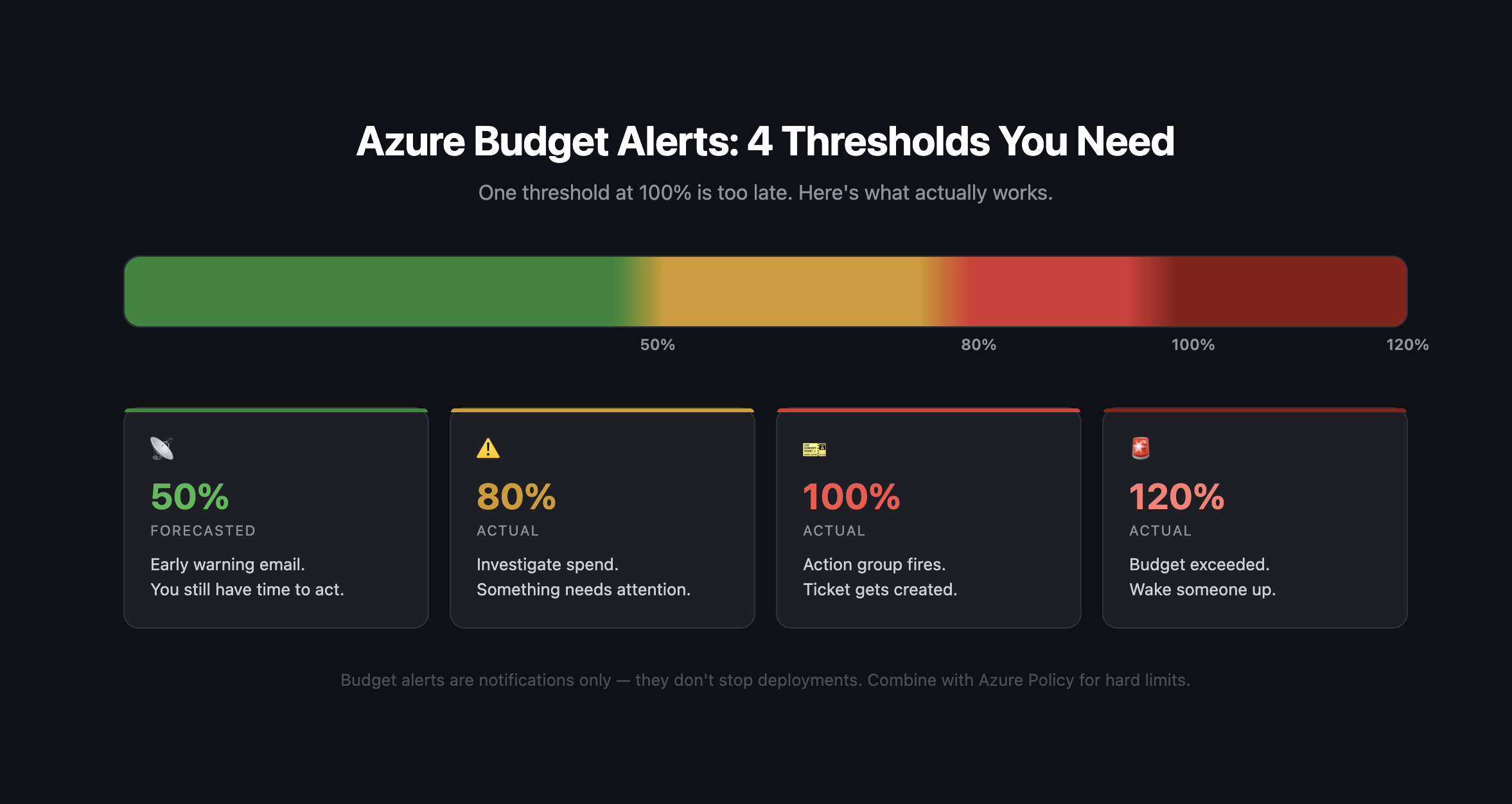
I use four thresholds:
- 50% forecasted: early warning that spend is trending high.
- 80% actual: find out what is driving the spend.
- 100% actual: the action group fires and a ticket is created.
- 120% actual: budget exceeded, someone needs to act now.
People tend to skip the 50% forecasted alert, but it’s the most useful one. Azure projects spend from current consumption and warns you before you reach the threshold.
Subscription budget
resource "azurerm_consumption_budget_subscription" "main" {  name            = "budget-${var.subscription_name}"  subscription_id = data.azurerm_subscription.current.id
  amount     = var.monthly_budget  time_grain = "Monthly"
  time_period {    start_date = formatdate("YYYY-MM-01'T'00:00:00Z", timestamp())    end_date   = "2030-12-31T00:00:00Z"  }
  # Alert at 50% (forecast)  notification {    enabled        = true    threshold      = 50    operator       = "GreaterThan"    threshold_type = "Forecasted"
    contact_emails = var.cost_alert_emails  }
  # Alert at 80% (actual)  notification {    enabled        = true    threshold      = 80    operator       = "GreaterThan"    threshold_type = "Actual"
    contact_emails = var.cost_alert_emails  }
  # Alert at 100% (actual)  notification {    enabled        = true    threshold      = 100    operator       = "GreaterThan"    threshold_type = "Actual"
    contact_emails = var.cost_alert_emails
    contact_groups = [      azurerm_monitor_action_group.cost_critical.id    ]  }
  # Alert at 120% (actual) - budget exceeded  notification {    enabled        = true    threshold      = 120    operator       = "GreaterThan"    threshold_type = "Actual"
    contact_emails = var.cost_alert_emails    contact_groups = [      azurerm_monitor_action_group.cost_critical.id    ]  }
  lifecycle {    ignore_changes = [time_period]  }}
Without ignore_changes on time_period, Terraform would update the start date on every apply because timestamp() changes each run.
On Terraform 1.5+ you can use plantimestamp() instead. It returns the same value for the whole plan, which avoids unnecessary diffs in other resources that reference it.
The 100% and 120% thresholds also set contact_groups, which triggers the action group (see below) for tickets, webhooks or automation. For the lower thresholds, email is enough.
Resource group budget
For workload budgets, scope to a resource group and optionally filter by resource type:
resource "azurerm_consumption_budget_resource_group" "workload" {  name              = "budget-${azurerm_resource_group.main.name}"  resource_group_id = azurerm_resource_group.main.id
  amount     = var.workload_budget  time_grain = "Monthly"
  time_period {    start_date = formatdate("YYYY-MM-01'T'00:00:00Z", timestamp())    end_date   = "2030-12-31T00:00:00Z"  }
  notification {    enabled        = true    threshold      = 80    operator       = "GreaterThan"    threshold_type = "Actual"
    contact_emails = var.workload_owner_emails  }
  notification {    enabled        = true    threshold      = 100    operator       = "GreaterThan"    threshold_type = "Actual"
    contact_emails = var.workload_owner_emails    contact_groups = [azurerm_monitor_action_group.cost_workload.id]  }
  # Optional: filter by specific resource types  filter {    dimension {      name = "ResourceType"      values = [        "Microsoft.Compute/virtualMachines",        "Microsoft.Storage/storageAccounts",        "Microsoft.ContainerService/managedClusters"      ]    }  }}
Without the filter, the budget covers everything in the resource group. I use filters when I want a separate budget for compute or storage only, so teams can see which category drives their spend.
Action group for cost alerts
The action group connects budget alerts to a ticketing system and automation instead of just email:
resource "azurerm_monitor_action_group" "cost_critical" {  name                = "ag-cost-critical"  resource_group_name = azurerm_resource_group.management.name  short_name          = "costcrit"
  email_receiver {    name          = "finance-team"    email_address = "finance@company.com"  }
  email_receiver {    name          = "platform-team"    email_address = "platform@company.com"  }
  # Webhook to ticketing system  webhook_receiver {    name        = "servicenow"    service_uri = var.servicenow_webhook_url  }
  # Logic App for automated actions  logic_app_receiver {    name                    = "cost-automation"    resource_id             = azurerm_logic_app_workflow.cost_automation.id    callback_url            = azurerm_logic_app_trigger_http_request.cost.callback_url    use_common_alert_schema = true  }}
With the Logic App receiver you can react to cost alerts automatically, for example shut down dev VMs, scale down non-prod AKS clusters, or at least create an incident ticket with the context attached.
Cost allocation with tags
Without tags you can’t tell which team or project caused a cost spike. I’ve seen organizations with hundreds of subscriptions and no tagging standard, where every cost review turned into detective work.
Tag schema
The tagging standard I usually implement:
Required Tags:├── cost-center: "CC-12345" (finance code)├── owner: "team-name" or "user@company.com"├── project: "project-name"├── environment: "prod|staging|dev|sandbox"└── application: "app-name"
Optional Tags:├── created-by: "terraform|manual|pipeline"├── created-date: "2026-01-15"├── expiry-date: "2026-12-31" (for temp resources)└── data-classification: "public|internal|confidential"
I use expiry-date for project resources, dev environments and anything temporary. A scheduled query finds resources past their expiry date and flags them for cleanup. In my environments this tag has saved more money than most Advisor recommendations.
Enforcing tags with policy
Tags are only useful if they’re consistent, so they need to be enforced by policy. My governance framework post covers the Azure Policy basics. Here we need two policies: one denies resources without the required tags, the other copies tags from the resource group to its resources:
# Require cost allocation tagsresource "azurerm_policy_definition" "require_cost_tags" {  name         = "require-cost-allocation-tags"  policy_type  = "Custom"  mode         = "Indexed"  display_name = "Require Cost Allocation Tags"
  metadata = jsonencode({    category = "Tags"  })
  policy_rule = jsonencode({    if = {      anyOf = [        {          field  = "tags['cost-center']"          exists = "false"        },        {          field  = "tags['owner']"          exists = "false"        },        {          field  = "tags['project']"          exists = "false"        }      ]    }    then = {      effect = "deny"    }  })}
# Inherit tags from resource groupresource "azurerm_policy_definition" "inherit_tags" {  name         = "inherit-tag-from-rg"  policy_type  = "Custom"  mode         = "Indexed"  display_name = "Inherit Tag from Resource Group"
  parameters = jsonencode({    tagName = {      type = "String"      metadata = {        displayName = "Tag Name"        description = "Name of the tag to inherit"      }    }  })
  policy_rule = jsonencode({    if = {      allOf = [        {          field  = "[concat('tags[', parameters('tagName'), ']')]"          exists = "false"        },        {          value  = "[resourceGroup().tags[parameters('tagName')]]"          notEquals = ""        }      ]    }    then = {      effect = "modify"      details = {        roleDefinitionIds = [          "/providers/Microsoft.Authorization/roleDefinitions/b24988ac-6180-42a0-ab88-20f7382dd24c"        ]        operations = [          {            operation = "addOrReplace"            field     = "[concat('tags[', parameters('tagName'), ']')]"            value     = "[resourceGroup().tags[parameters('tagName')]]"          }        ]      }    }  })}
The inheritance policy saves the most frustration. Teams tag the resource group and the modify effect copies the tags to each resource, so Cost Analysis no longer shows untagged resources in a tagged RG.
Policy initiative
Bundle both policies into one initiative. For policy management at scale, EPAC (Enterprise Policy as Code) handles versioning and deployment of definitions:
resource "azurerm_policy_set_definition" "cost_tags" {  name         = "cost-tags-initiative"  policy_type  = "Custom"  display_name = "Cost Allocation Tags Initiative"
  policy_definition_reference {    policy_definition_id = azurerm_policy_definition.require_cost_tags.id  }
  dynamic "policy_definition_reference" {    for_each = ["cost-center", "owner", "project", "environment"]    content {      policy_definition_id = azurerm_policy_definition.inherit_tags.id      parameter_values = jsonencode({        tagName = { value = policy_definition_reference.value }      })    }  }}
resource "azurerm_management_group_policy_assignment" "cost_tags" {  name                 = "cost-tags-assignment"  management_group_id  = azurerm_management_group.landing_zones.id  policy_definition_id = azurerm_policy_set_definition.cost_tags.id
  identity {    type = "SystemAssigned"  }
  location = "westeurope"}
The modify effect needs a managed identity with write permissions on tags:
resource "azurerm_role_assignment" "cost_tags_tag_contributor" { scope = azurerm_management_group.landing_zones.id role_definition_name = "Tag Contributor" principal_id = azurerm_management_group_policy_assignment.cost_tags.identity[0].principal_id}Assigned at the Landing Zones management group, this applies to every subscription below it. If you’re just starting with tagging, use audit instead of deny first to see the current state before you block deployments.
Anomaly detection
Budgets catch gradual overspend. Anomaly detection catches sudden changes, such as a GPU VM left running over the weekend, a misbehaving autoscaler, or a storage account with unexpected egress.
Built-in anomaly alerts
Cost Management has built-in anomaly detection. Configure it in the portal under Cost Management > Cost alerts, or with azapi:
resource "azapi_resource" "cost_anomaly_alert" {  type      = "Microsoft.CostManagement/scheduledActions@2023-11-01"  name      = "cost-anomaly-alert"  parent_id = data.azurerm_subscription.current.id
  body = jsonencode({    kind = "InsightAlert"    properties = {      displayName = "Daily Cost Anomaly Alert"      status      = "Enabled"      viewId      = "/subscriptions/${data.azurerm_subscription.current.subscription_id}/providers/Microsoft.CostManagement/views/ms:DailyAnomalyByResourceGroup"      schedule = {        frequency   = "Daily"        hourOfDay   = 8        daysOfWeek  = ["Monday", "Tuesday", "Wednesday", "Thursday", "Friday"]        startDate   = formatdate("YYYY-MM-DD'T'00:00:00Z", timestamp())        endDate     = "2030-12-31T00:00:00Z"      }      notification = {        to = var.cost_alert_emails        subject = "Azure Cost Anomaly Detected"      }    }  })}
If you only need anomaly alerts and no scheduled reports, the azurerm provider has a simpler native resource:
resource "azurerm_cost_anomaly_alert" "main" { name = "cost-anomaly-alert" display_name = "Cost Anomaly Alert" email_subject = "Azure Cost Anomaly Detected" email_addresses = var.cost_alert_emails}I use azurerm_cost_anomaly_alert where possible and azapi only for scheduled reports or custom view IDs.
Custom anomaly detection with Log Analytics
The built-in alerts catch obvious spikes. For more control, export cost data to a storage account and query it with KQL:
resource "azurerm_subscription_cost_management_export" "daily" {  name                         = "daily-cost-export"  subscription_id              = data.azurerm_subscription.current.id  recurrence_type              = "Daily"  recurrence_period_start_date = formatdate("YYYY-MM-DD'T'00:00:00Z", timestamp())  recurrence_period_end_date   = "2030-12-31T00:00:00Z"
  export_data_storage_location {    container_id     = azurerm_storage_container.cost_exports.resource_manager_id    root_folder_path = "daily"  }
  export_data_options {    type       = "ActualCost"    time_frame = "MonthToDate"  }}
The export writes CSV files. To query them with KQL you need an ingestion pipeline (Azure Data Factory or a Logic App, for example) that loads the CSVs into a custom table in Log Analytics. Then you can alert on cost spikes per resource group:
resource "azurerm_monitor_scheduled_query_rules_alert_v2" "cost_spike" {  name                = "alert-cost-spike"  resource_group_name = azurerm_resource_group.management.name  location            = azurerm_resource_group.management.location
  evaluation_frequency = "P1D"  window_duration      = "P1D"  scopes               = [azurerm_log_analytics_workspace.platform.id]  severity             = 2
  criteria {    query = <<-QUERY      // Custom cost data ingested from exports.      // Field names depend on your ingestion pipeline. Azure cost exports use      // CostInBillingCurrency and ResourceGroupName as column headers.      CostData_CL      | where TimeGenerated > ago(1d)      | summarize TodayCost = sum(CostInBillingCurrency_d) by ResourceGroupName_s      | join kind=inner (          CostData_CL          | where TimeGenerated > ago(8d) and TimeGenerated < ago(1d)          | summarize AvgCost = avg(CostInBillingCurrency_d) by ResourceGroupName_s      ) on ResourceGroupName_s      | where TodayCost > AvgCost * 1.5  // 50% spike      | project ResourceGroupName_s, TodayCost, AvgCost, Increase = (TodayCost - AvgCost) / AvgCost * 100    QUERY
    time_aggregation_method = "Count"    threshold               = 0    operator                = "GreaterThan"  }
  action {    action_groups = [azurerm_monitor_action_group.cost_critical.id]  }}
The query compares today’s cost per resource group with the 7-day average and flags anything 50% or more above it. The _d and _s suffixes are Log Analytics type suffixes (double, string) added when CSV data lands in a custom table.
Adjust the multiplier to how noisy the environment is. 1.5x works well for my production subscriptions. Dev subscriptions may need 2x or more because their spend is less predictable.
Budget automation module
The code above works for a single subscription. With landing zone vending you want a module:
variable "name" { type = string }variable "scope_id" { type = string }variable "scope_type" {  type = string  validation {    condition     = contains(["subscription", "resource_group"], var.scope_type)    error_message = "Scope type must be 'subscription' or 'resource_group'."  }}variable "amount" { type = number }variable "alert_emails" { type = list(string) }variable "action_group_id" { type = string }
variable "thresholds" {  type = list(object({    threshold      = number    threshold_type = string  # "Actual" or "Forecasted"  }))  validation {    condition     = length(var.thresholds) <= 5    error_message = "Azure supports a maximum of 5 notification thresholds per budget."  }  default = [    { threshold = 50, threshold_type = "Forecasted" },    { threshold = 80, threshold_type = "Actual" },    { threshold = 100, threshold_type = "Actual" },    { threshold = 120, threshold_type = "Actual" }  ]}
locals {  notifications = [    for idx, t in var.thresholds : {      enabled        = true      threshold      = t.threshold      operator       = "GreaterThan"      threshold_type = t.threshold_type      contact_emails = var.alert_emails      contact_groups = t.threshold >= 100 ? [var.action_group_id] : []    }  ]}
resource "azurerm_consumption_budget_subscription" "this" {  count           = var.scope_type == "subscription" ? 1 : 0  name            = var.name  subscription_id = var.scope_id
  amount     = var.amount  time_grain = "Monthly"
  time_period {    start_date = formatdate("YYYY-MM-01'T'00:00:00Z", timestamp())  }
  dynamic "notification" {    for_each = local.notifications    content {      enabled        = notification.value.enabled      threshold      = notification.value.threshold      operator       = notification.value.operator      threshold_type = notification.value.threshold_type      contact_emails = notification.value.contact_emails      contact_groups = notification.value.contact_groups    }  }
  lifecycle {    ignore_changes = [time_period]  }}
resource "azurerm_consumption_budget_resource_group" "this" {  count             = var.scope_type == "resource_group" ? 1 : 0  name              = var.name  resource_group_id = var.scope_id
  amount     = var.amount  time_grain = "Monthly"
  time_period {    start_date = formatdate("YYYY-MM-01'T'00:00:00Z", timestamp())  }
  dynamic "notification" {    for_each = local.notifications    content {      enabled        = notification.value.enabled      threshold      = notification.value.threshold      operator       = notification.value.operator      threshold_type = notification.value.threshold_type      contact_emails = notification.value.contact_emails      contact_groups = notification.value.contact_groups    }  }
  lifecycle {    ignore_changes = [time_period]  }}
count on scope_type lets the same module handle subscription and resource group budgets. The thresholds default can be overridden per landing zone.
Using it in landing zone vending
module "landing_zone" {  source = "./modules/landing-zone"  # ... other config}
module "landing_zone_budget" {  source = "./modules/budget"
  name            = "budget-${var.workload}-${var.environment}"  scope_type      = "subscription"  scope_id        = module.landing_zone.subscription_id  amount          = var.monthly_budget  alert_emails    = var.cost_owners  action_group_id = azurerm_monitor_action_group.cost_critical.id}
I make this step 4 of the vending process, after governance policies, RBAC and networking, so no subscription is created without a budget.
Where to go from here
Once budgets and tags are in place, the usual next steps are:
- A cost dashboard in Power BI or Azure Workbooks based on the daily exports, with a view per cost center.
- Cost checks in CI/CD. Infracost, for example, estimates the cost impact of Terraform changes before they’re applied.
- Weekly cost reviews. A monthly review is too late to change much. Fifteen minutes on the top 5 cost movers each week is enough.
If you want to formalize this across the organization, the FinOps Foundation’s FinOps Framework is worth reading.
Sources
-
Microsoft, “Azure Cost Management,” Azure Documentation, https://learn.microsoft.com/azure/cost-management-billing/costs/overview-cost-management
-
Microsoft, “Create and Manage Budgets,” Azure Documentation, https://learn.microsoft.com/azure/cost-management-billing/costs/tutorial-acm-create-budgets
-
Microsoft, “Cost Anomaly Alerts,” Azure Documentation, https://learn.microsoft.com/azure/cost-management-billing/understand/analyze-unexpected-charges
-
Microsoft, “Organize Resources with Tags,” Azure Documentation, https://learn.microsoft.com/azure/azure-resource-manager/management/tag-resources
-
FinOps Foundation, “FinOps Framework,” https://www.finops.org/framework/
-
Microsoft, “Cost Management in CAF,” CAF Documentation, https://learn.microsoft.com/azure/cloud-adoption-framework/govern/cost-management/